

Please note: if your image is already low resolution, saving it again won’t fix it. This works for original artwork that you made inside Canva.
Step 1: Make your canvas big enough first
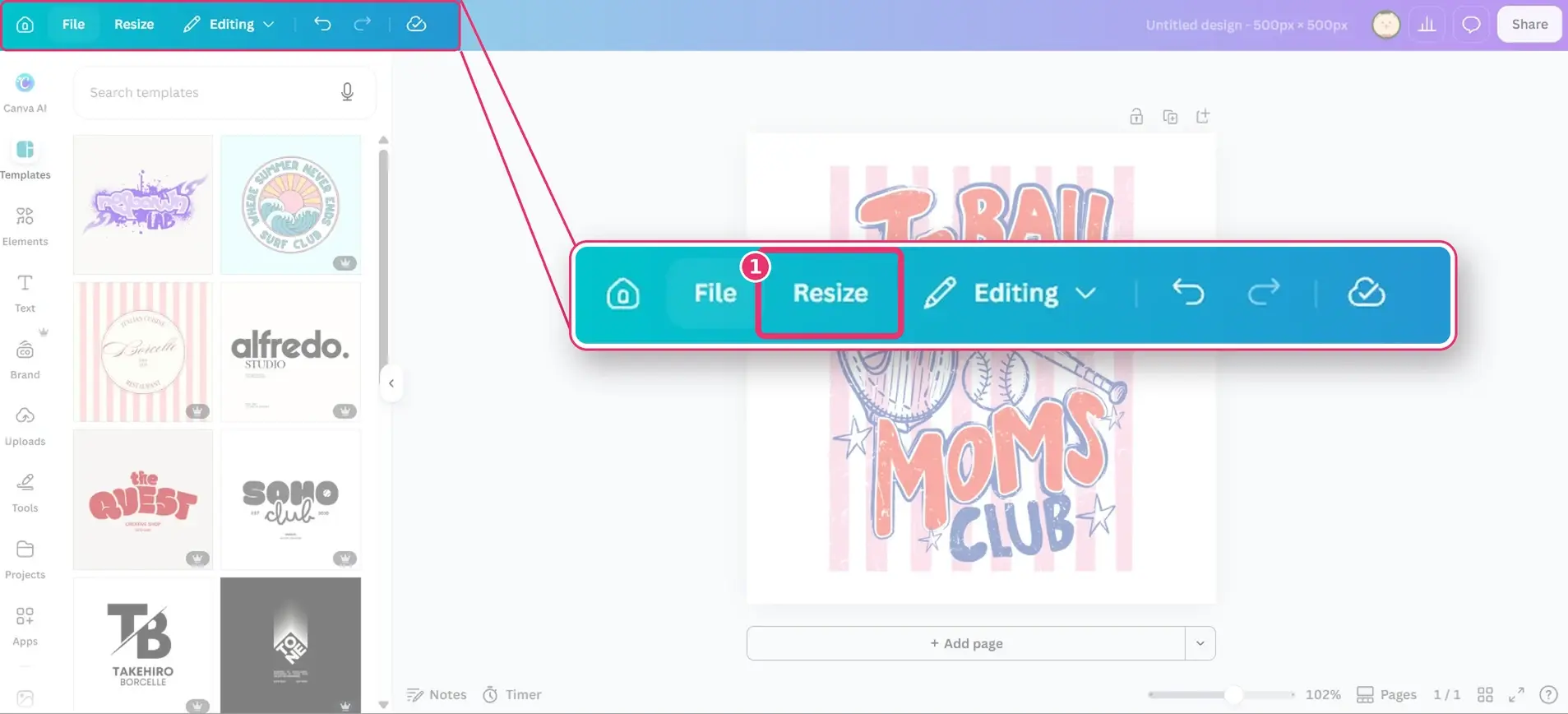
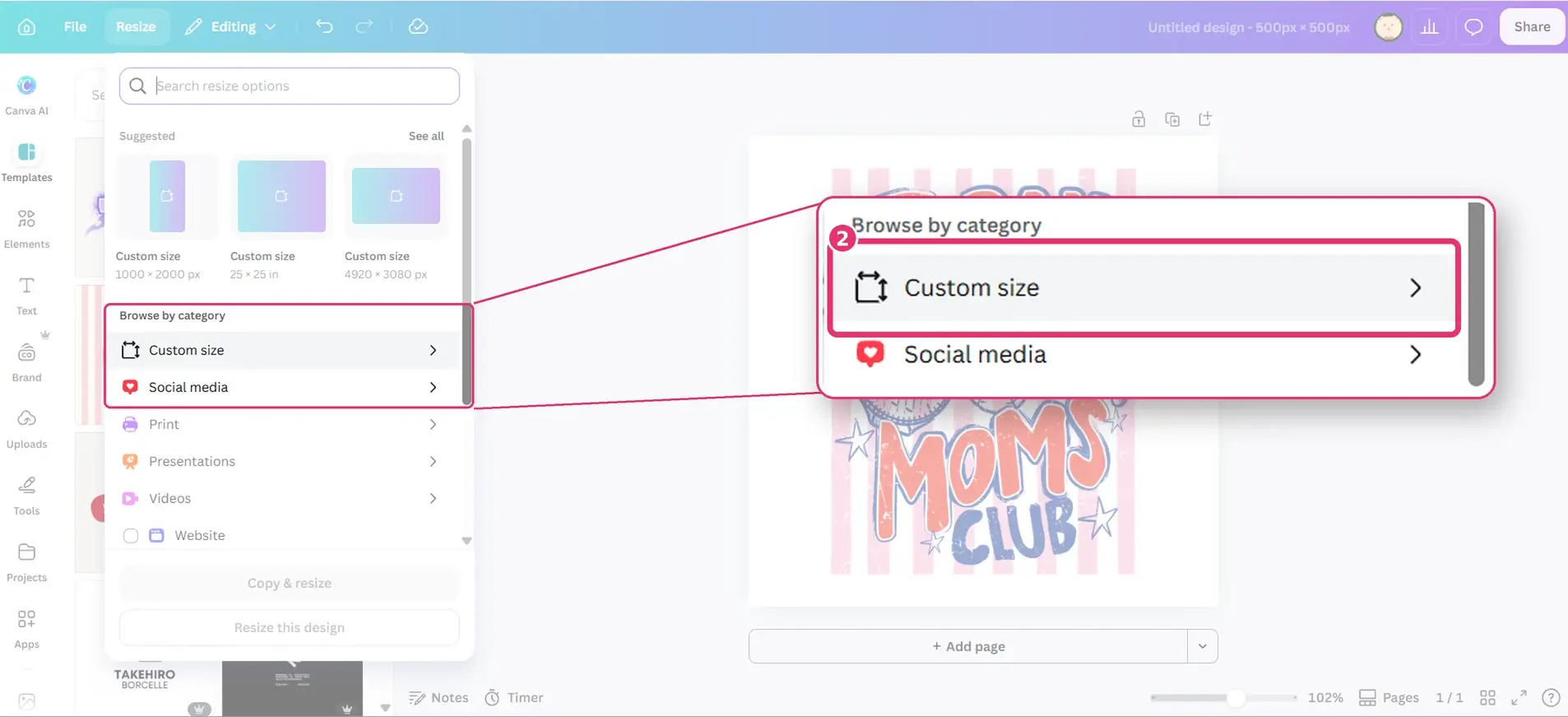
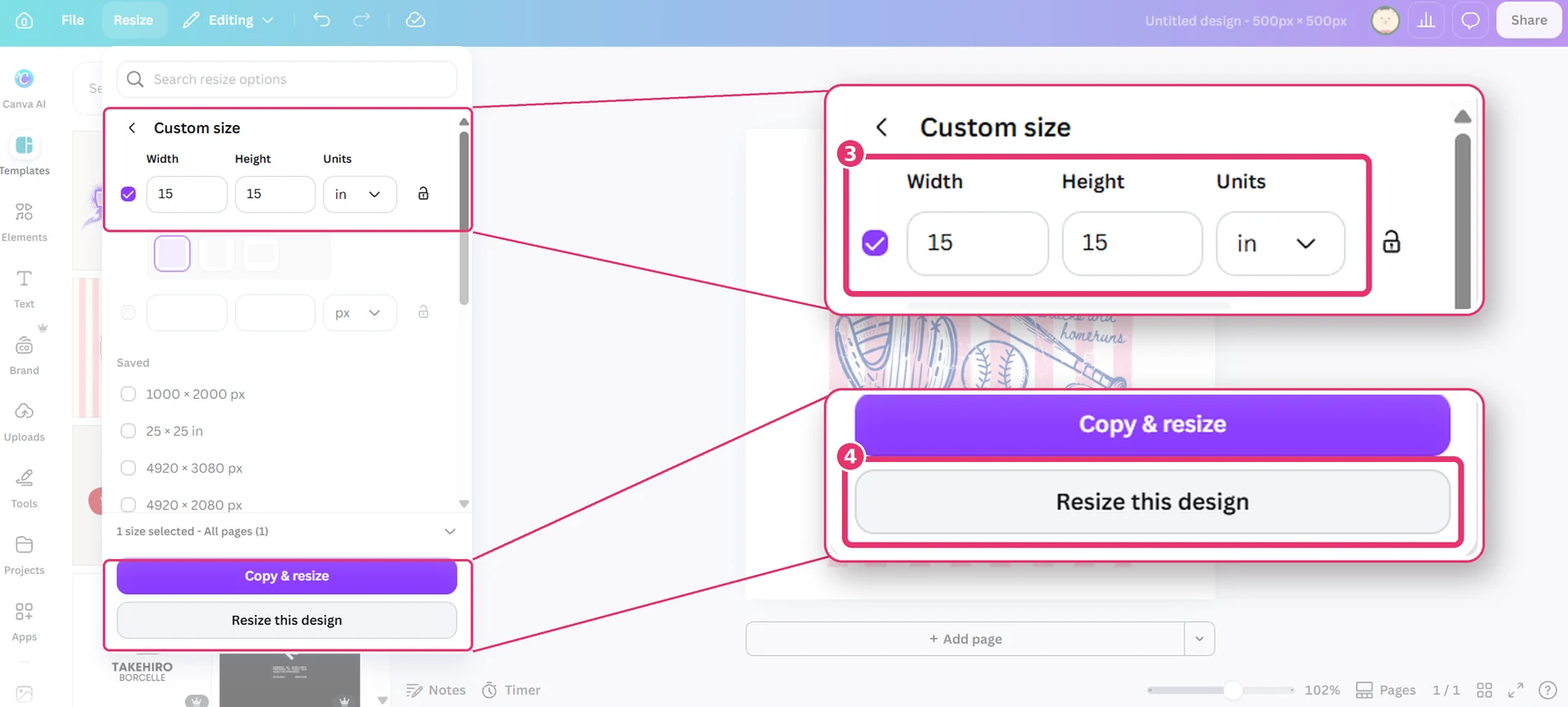
Make your canvas at least the size of your transfer, in inches. A design started on a small canvas prints blurry, and downloading it bigger later can’t add detail that isn’t there. Click Resize, then Custom size, change the units to in (inches), type at least the size of your transfer (for example 15 × 15 in) and click Resize this design.
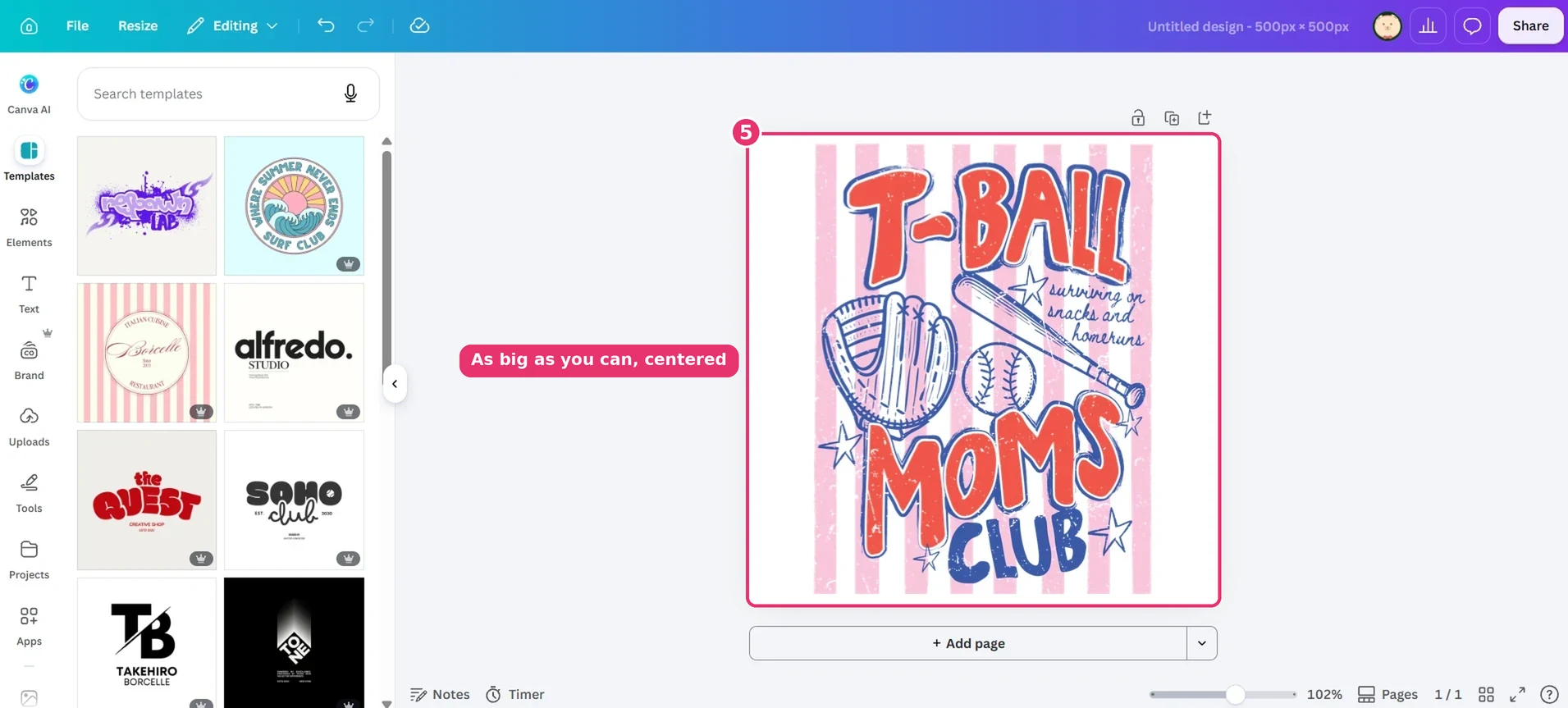
Step 2: Make your design fill the canvas
Drag the corners of your design until it is as big as it can be on the canvas, and keep it centered.
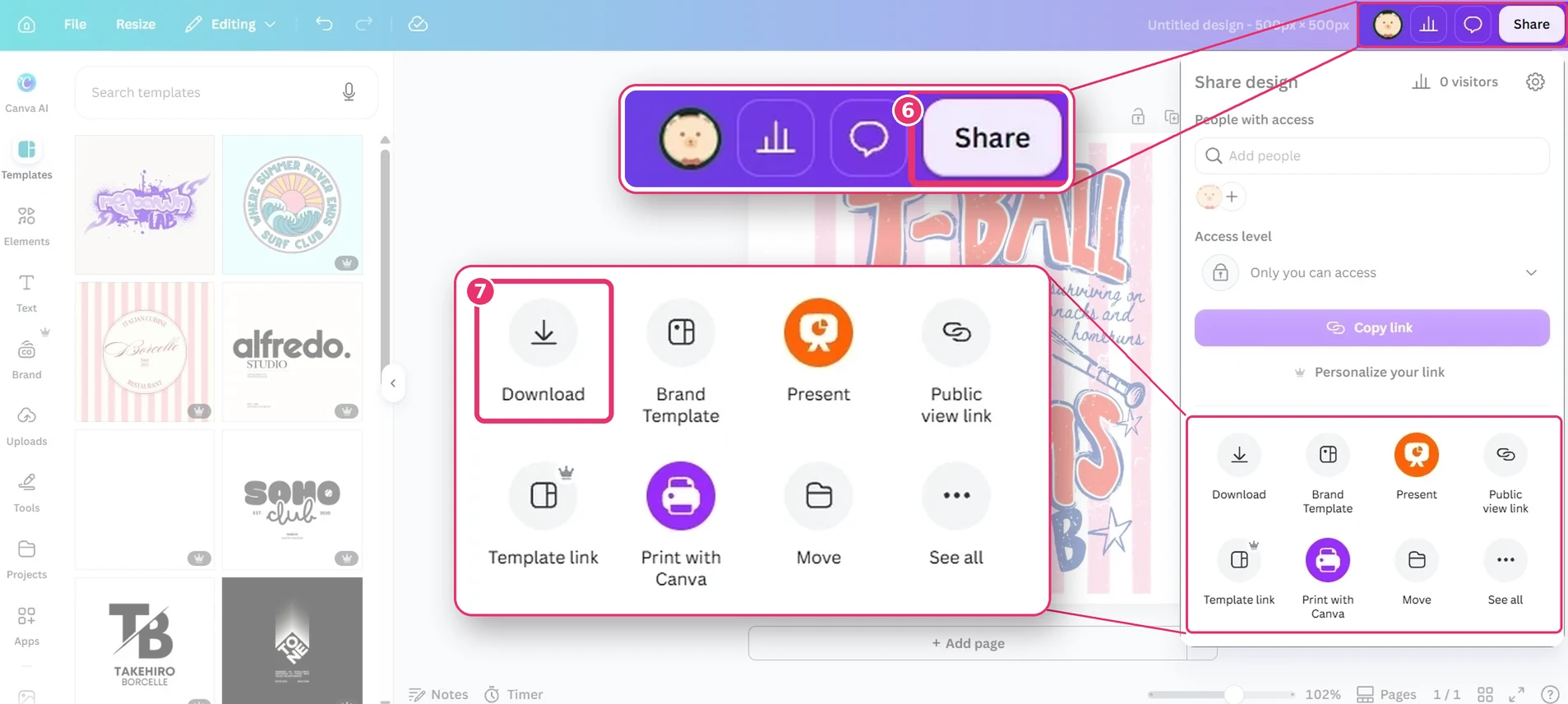
Step 3: Click “Share”, then “Download”
Share is in the top right corner. In the panel that opens, click Download.
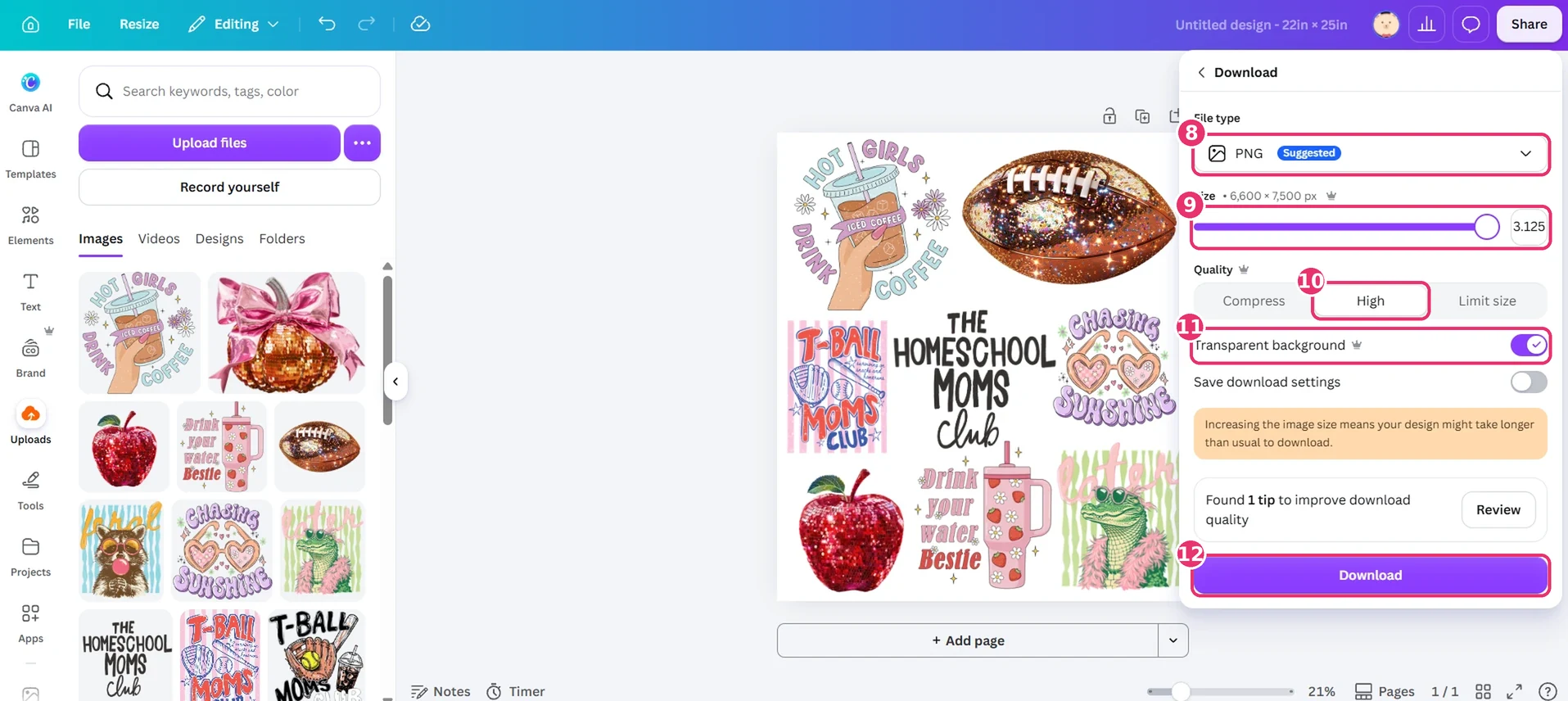
Step 4: Choose the right download settings (the most important part)
- File type: PNG
- Size: drag the slider all the way to the right
- Quality: High
- Transparent background: on
Tip: turn on Save download settings and Canva remembers these next time.
Using free Canva?
Resize, the size slider and Transparent background are Canva Pro tools (they show a little crown). You can still get a sharp print on free Canva:
- Start a new design: Create a design → Custom size, switch to inches and make the canvas as big as your transfer.
- Make your design fill the canvas (Step 2).
- Download it as a PNG.
- Upload it to our gang sheet builder, click your design and press ✨ Remove Background. Our builder takes the background away for you, free.
Step 5: Click “Download”
Once your PNG is saved, you can drop it onto a gang sheet in our online gang sheet builder.
Learn More: How to make a custom DTF Gang Sheet in CANVA
Learn More: How to press DTF tags inside of shirts