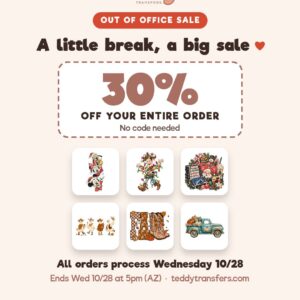


Out of Office Sale Orders will not process until Wed 10/28, but enjoy 30% OFF your entire order in the meantime, no code needed Ends Wednesday at 5:00pm (Arizona time) Build a sheet →
✦ Spend $100+ for FREE USA shipping ✦

← All articles

How to make a custom DTF Gang Sheet in CANVA

·
How to make a gang sheet inside Canva

Here’s how to set up a gang sheet in Canva and order it from us, start to finish. Your finished sheet uploads right at the bottom of this page.

Step 1: Create a custom size in Canva

On Canva’s home page click Create a design → Custom size and set the units to in (inches).

  • Width: always 22 in for DTF gang sheets, or 11 in for UV DTF gang sheets.
  • Height: one of our sheet sizes below.

Then click Create new design.
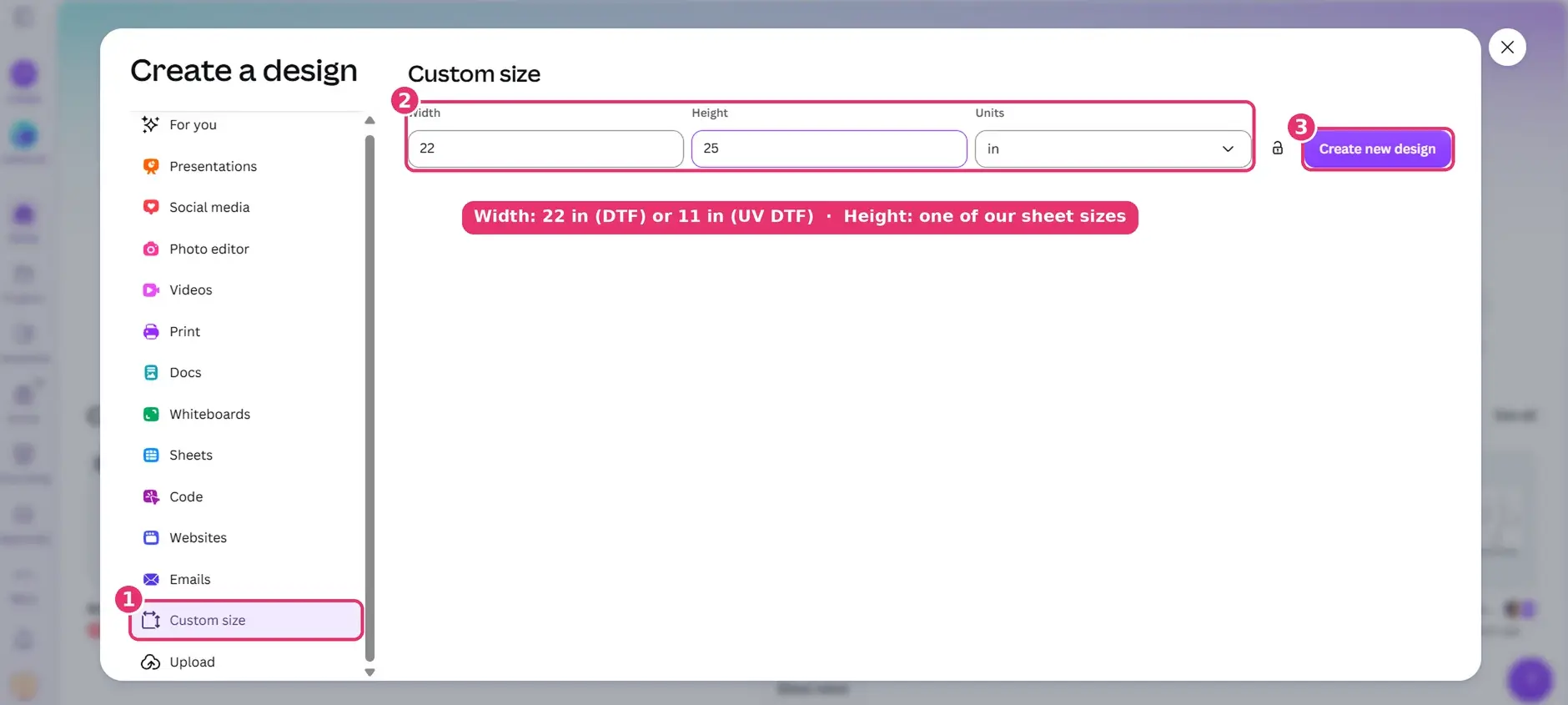
Canva Create a design window with Custom size, width 22 inches, height 25 inches and Create new design highlighted
DTF gang sheets: 22″ wide, 5″ to 150″ tall (every 5″)

22 × 5 22 × 10 22 × 15 22 × 20 22 × 25 22 × 30 22 × 35 22 × 40 22 × 45 22 × 50 22 × 55 22 × 60 22 × 65 22 × 70 22 × 75 22 × 80 22 × 85 22 × 90 22 × 95 22 × 100 22 × 105 22 × 110 22 × 115 22 × 120 22 × 125 22 × 130 22 × 135 22 × 140 22 × 145 22 × 150

UV DTF gang sheets: 11″ wide, 5″ to 120″ tall (every 5″)

11 × 5 11 × 10 11 × 15 11 × 20 11 × 25 11 × 30 11 × 35 11 × 40 11 × 45 11 × 50 11 × 55 11 × 60 11 × 65 11 × 70 11 × 75 11 × 80 11 × 85 11 × 90 11 × 95 11 × 100 11 × 105 11 × 110 11 × 115 11 × 120

Step 2: Upload your files and arrange them the way you want them to print

Click Uploads on the left → Upload files and add your PNGs. Drag each one onto the canvas, then use the circles on its corners to make it the size you want, and place it where you want it on the sheet.
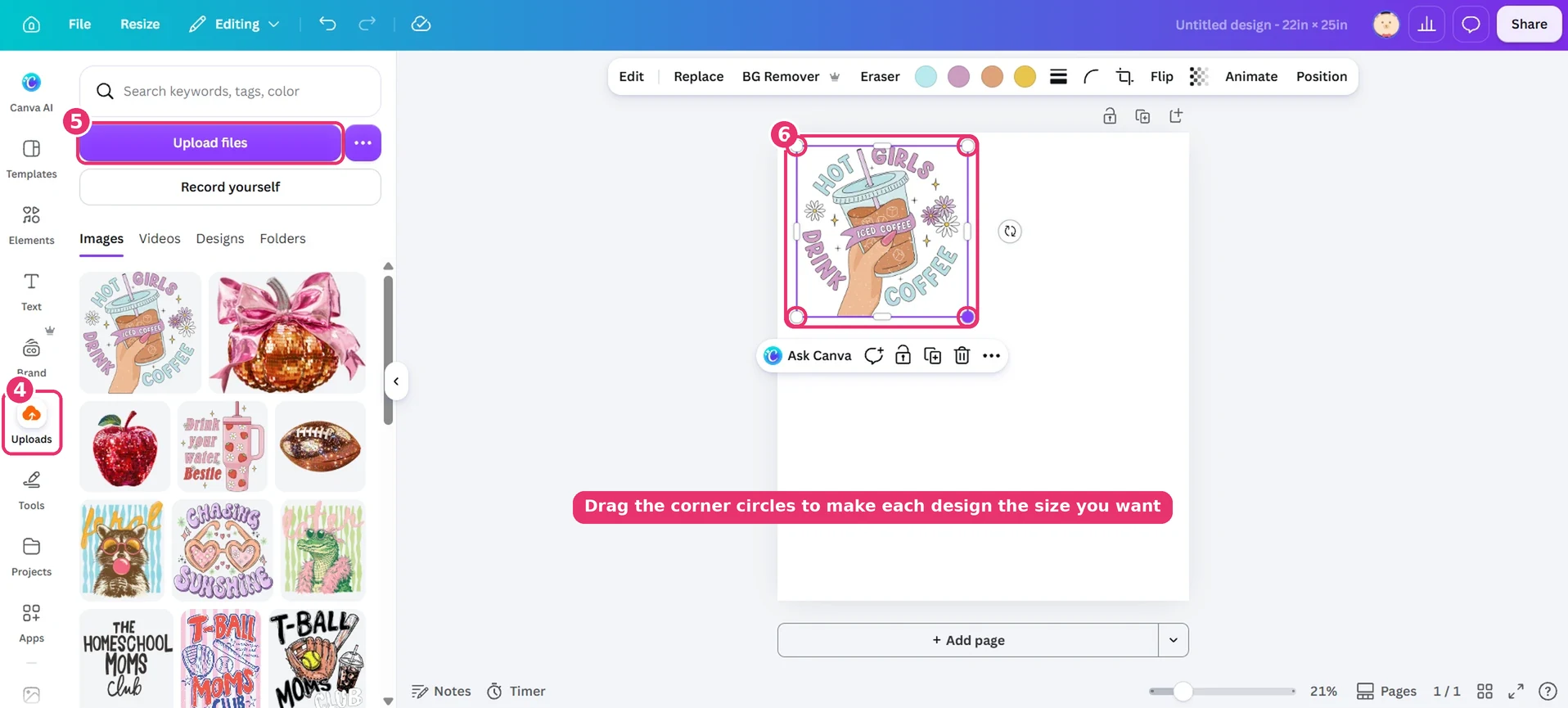
Canva Uploads tab and Upload files button highlighted, a design on the canvas with its corner circles for resizing

It prints exactly how you see it. Anything overlapping, cut off at the edge of the canvas, or touching another design prints that way. Leave a little space between designs so they’re easy to cut apart.

Step 3: Leave room to cut, then click “Share” → “Download”

Make sure there’s enough space around each design to cut it out. When your sheet is ready, click Share in the top right, then Download.
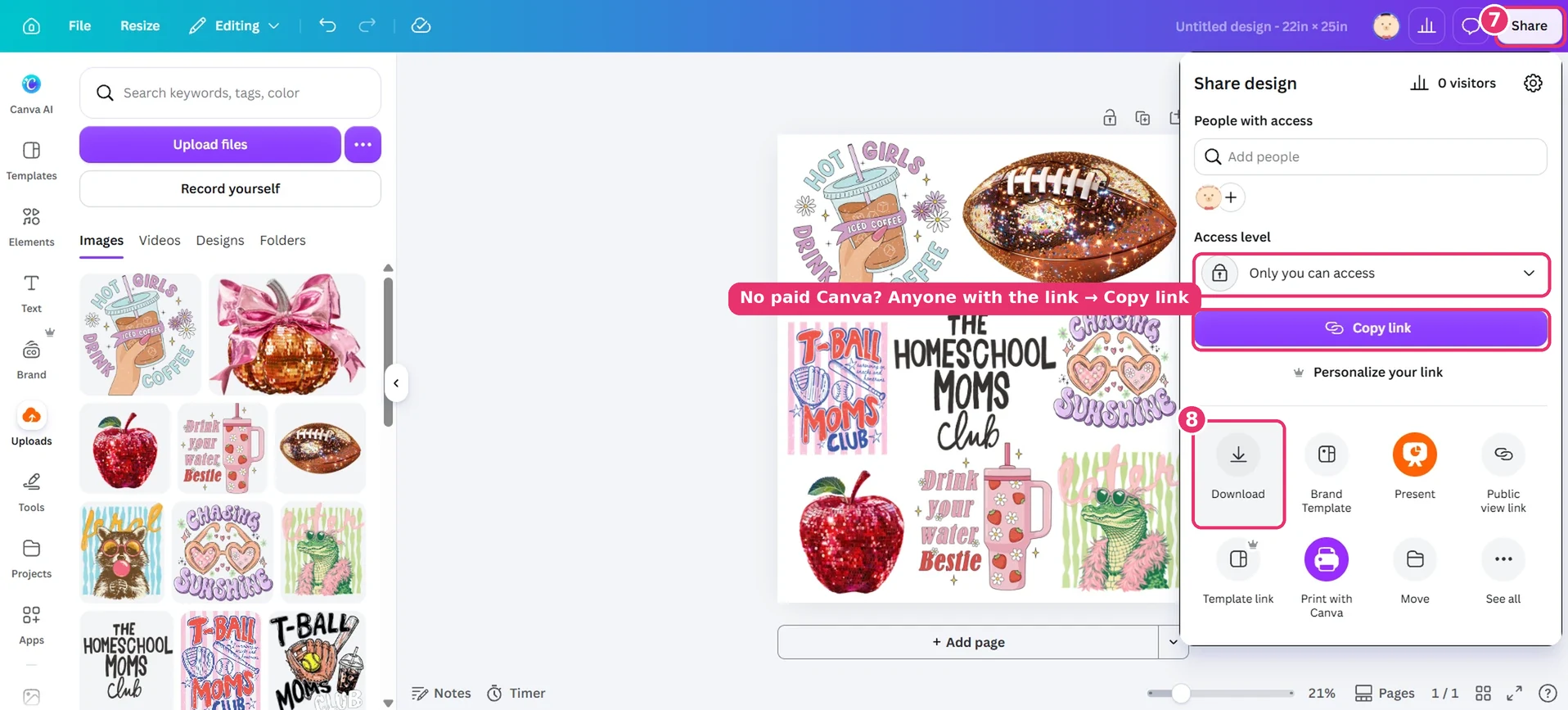
Finished gang sheet in Canva with Share, Download, Access level and Copy link highlighted

Using free Canva? Option 2

Click Share, set Access level to Anyone with the link, click Copy link, then paste the link into our uploader below.

Step 4: Choose the right download settings

  • File type: PNG
  • Size: drag the slider all the way up
  • Quality: High
  • Transparent background: on

Then click Download.
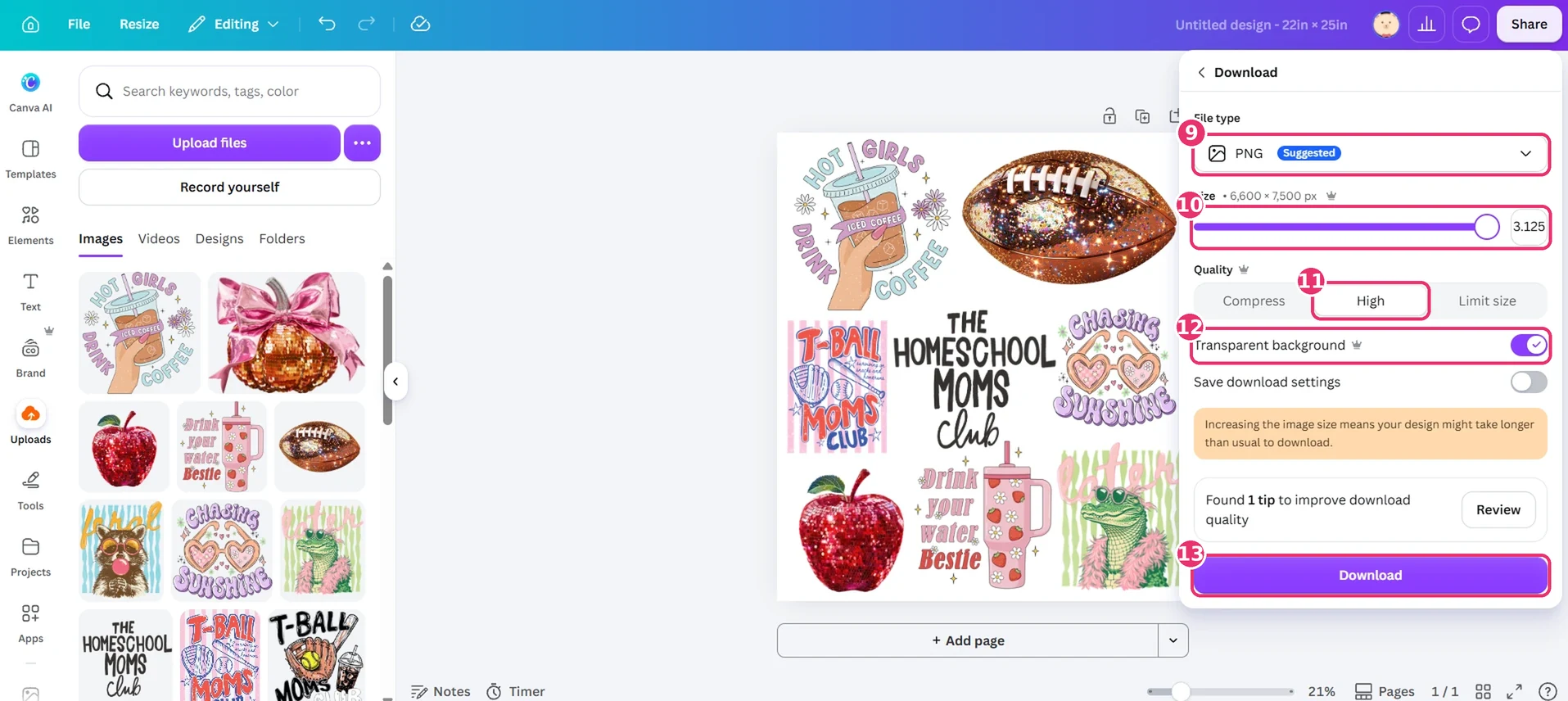
Canva download settings for a gang sheet: PNG, size slider all the way up, quality High, transparent background on, then Download

Step 5: Upload your sheet and order

Pick DTF or UV DTF, choose the same size you made in Canva, and upload your PNG (or paste your Canva link).

Learn More: How to save a High-Resolution image in CANVA

Learn More: What is a DTF Transfer?

Made with Teddy

Follow along @TeddyTransfers

Follow us on Instagram
Teddy Transfers Instagram postTeddy Transfers Instagram postTeddy Transfers Instagram postTeddy Transfers Instagram postTeddy Transfers Instagram postTeddy Transfers Instagram postTeddy Transfers Instagram postTeddy Transfers Instagram post